Welcome Back 👋
Use the menu to update your website. Changes save instantly and go live on your site straight away.
6Services Listed
5Gallery Images
3Testimonials
✓Site Live
Quick Actions
How It Works
1
Edit your details
Click any section in the menu, make your changes and hit Save.
2
Changes go live instantly
No downloading files. No uploading. It just updates.
3
For new images
Upload photos to your images/ folder via cPanel, then update the filename here.
Contact Details
These update your phone number, email and WhatsApp across the entire site — header, footer, contact section and mobile bar.
Phone & WhatsApp
Shown to visitors e.g. 07712 345 678
Replace leading 0 with 44 — so 07712345678 becomes 447712345678
Email Address
Service Area & Hours
Image Manager
To replace an image — rename your new photo to match the filename shown, upload it to your images/ folder via cPanel File Manager, and it will update on the site automatically.
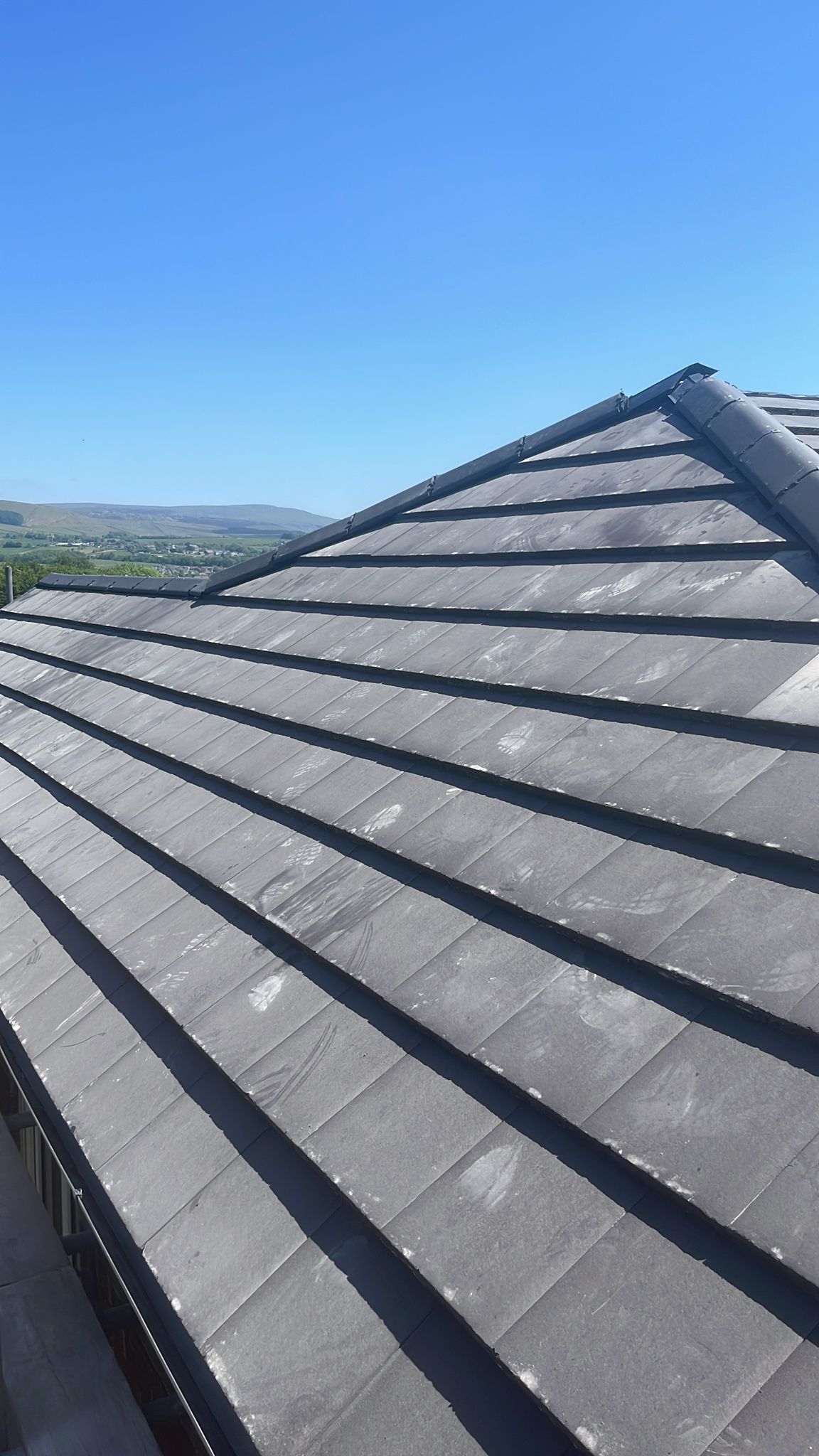
image.jpg
Hero · About · Slate Roofing · Gallery
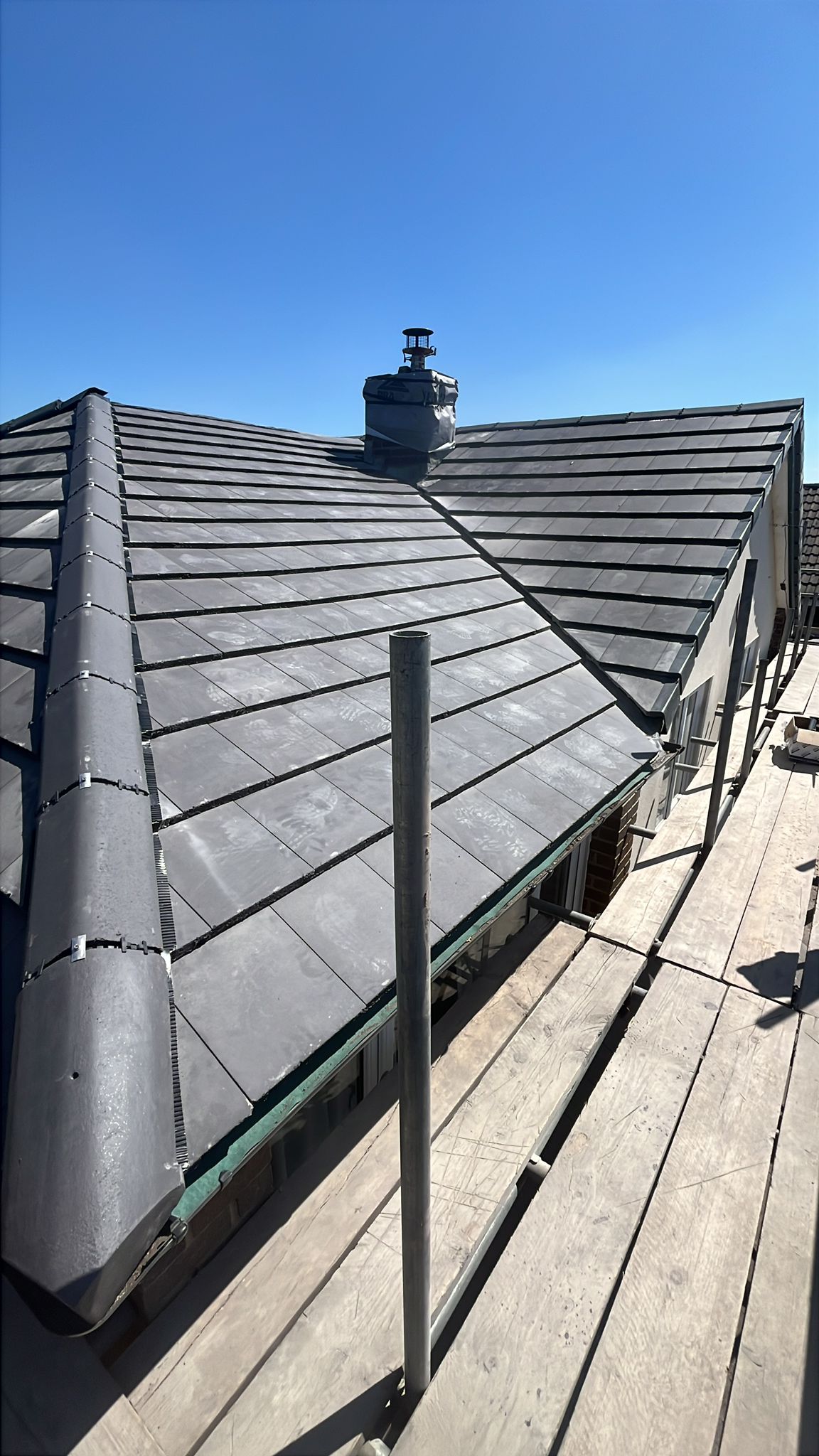
image1.jpg
Hero · Flat Roofing · Lead & Flashing · Gallery
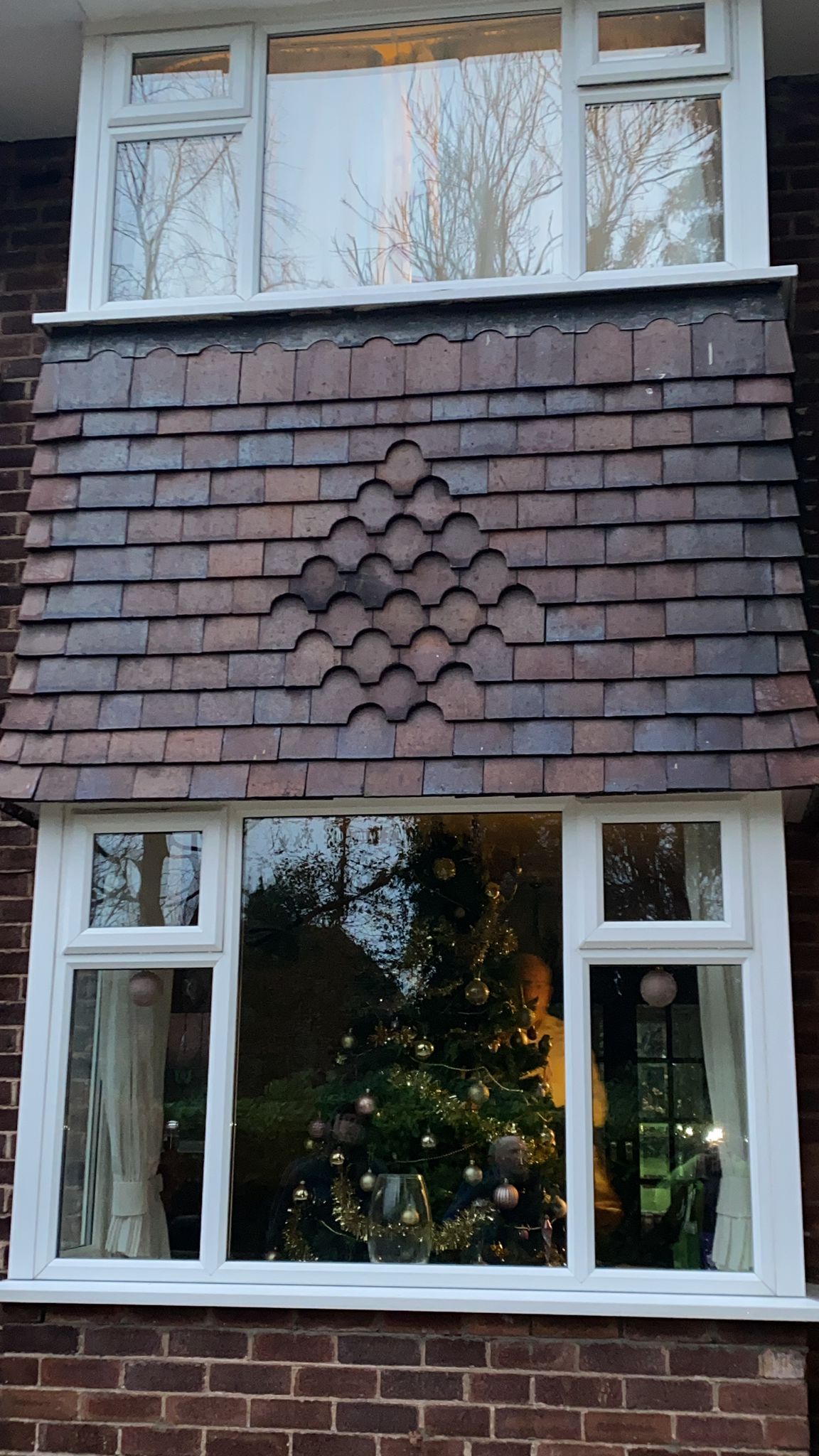
image2.jpg
About · Heritage & Tile · Gallery
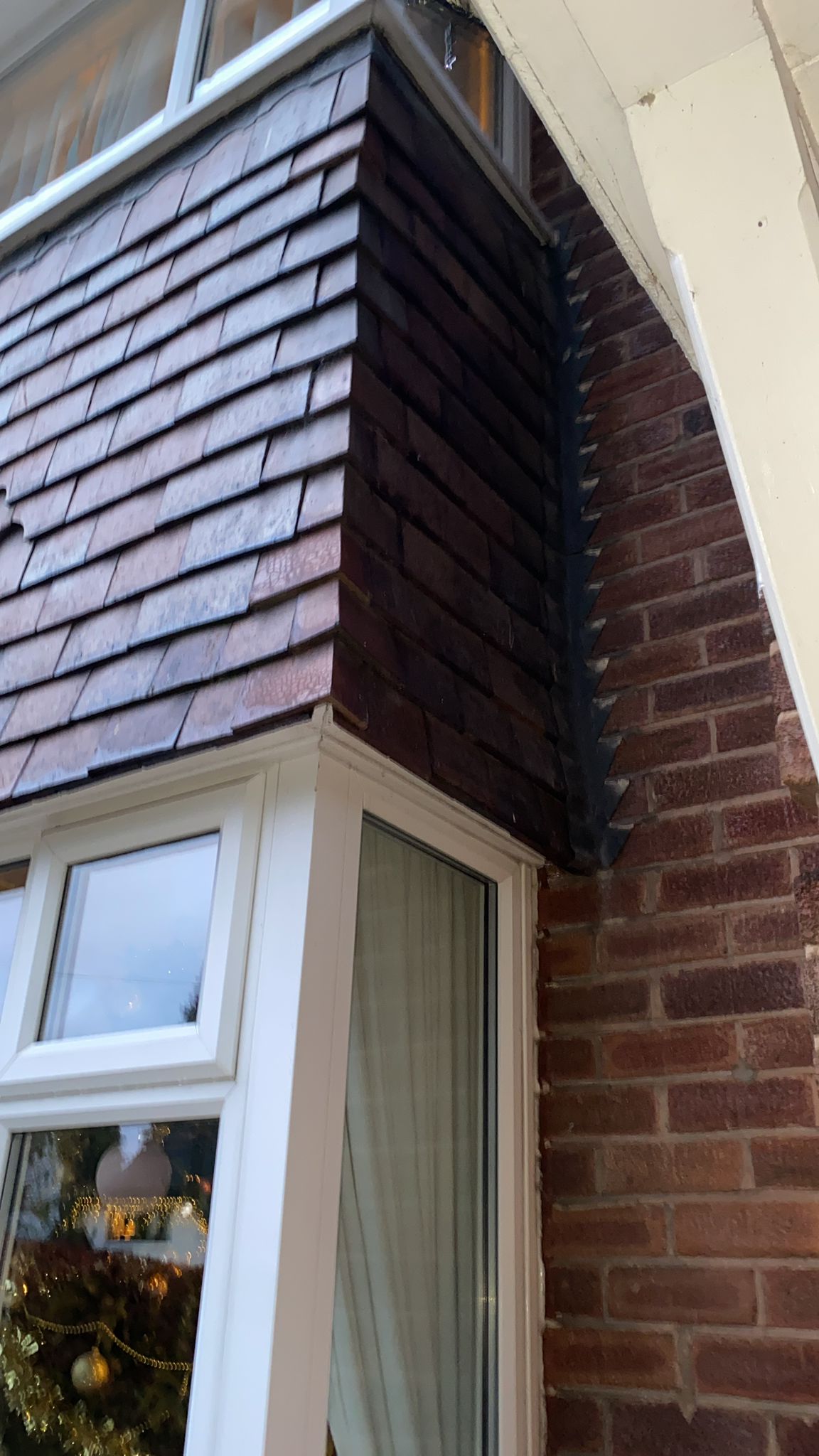
image3.jpg
About secondary · Gallery
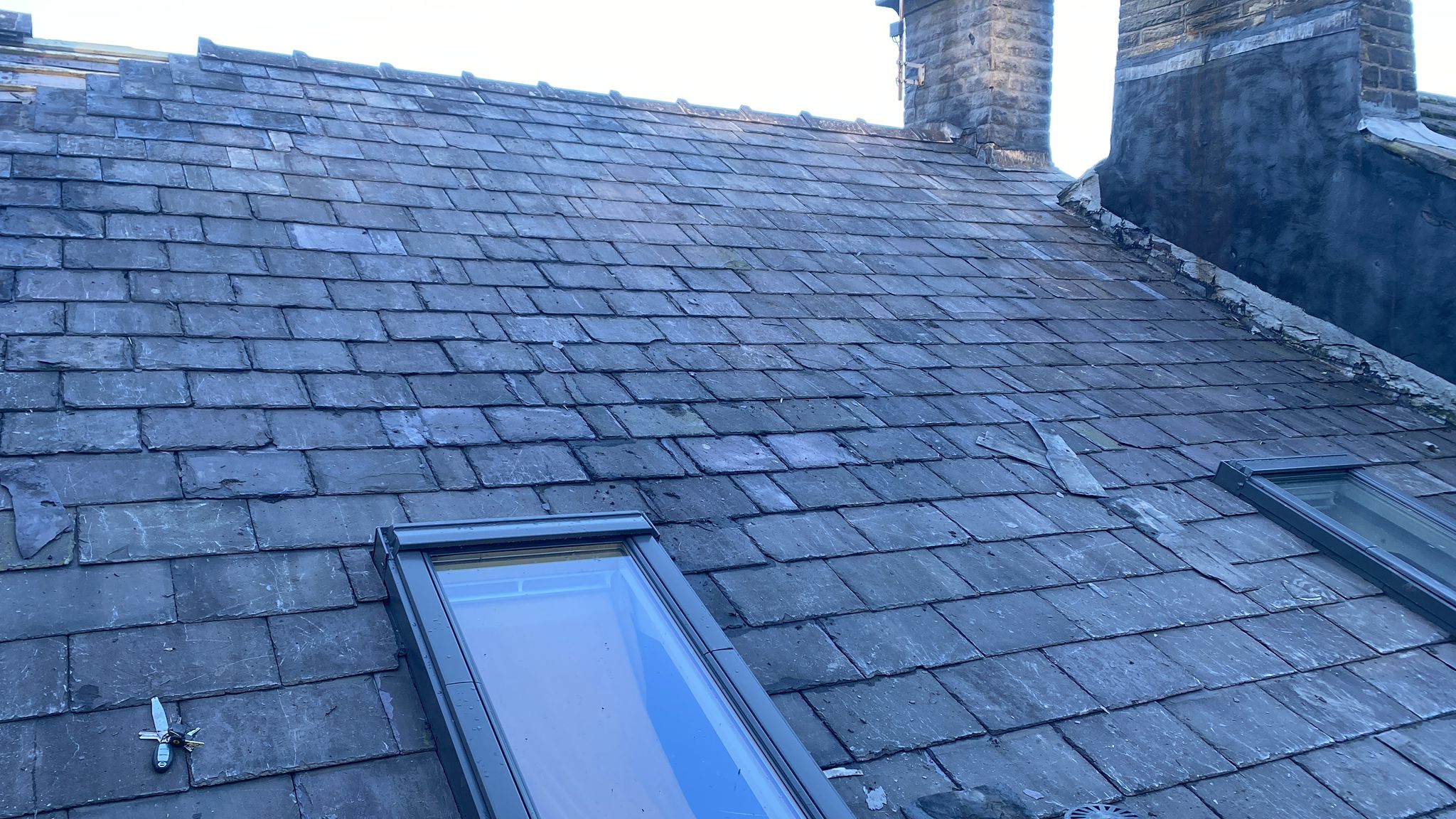
image4.jpg
Repairs · Skylights · Gallery
Upload a New Image
Upload additional photos directly — great for adding new project photos. Give the file a simple name (e.g. roof-job-2025.jpg) and it will be saved to your images folder instantly.
Use only letters, numbers, hyphens and .jpg/.png — no spaces
All Images on Server
Loading...
Services Content
Edit your six service card names and descriptions. Keep descriptions to 2–3 sentences.
Client Testimonials
Update your customer reviews. Use real reviews from Google or Checkatrade for maximum credibility.
Business Info
Update your stats, tagline and about text.
Stats & Figures
Footer Tagline
About Section Text
Change Password
Update your admin portal password. Make it something memorable but hard to guess — at least 6 characters.
Change Password